 SugarLaps
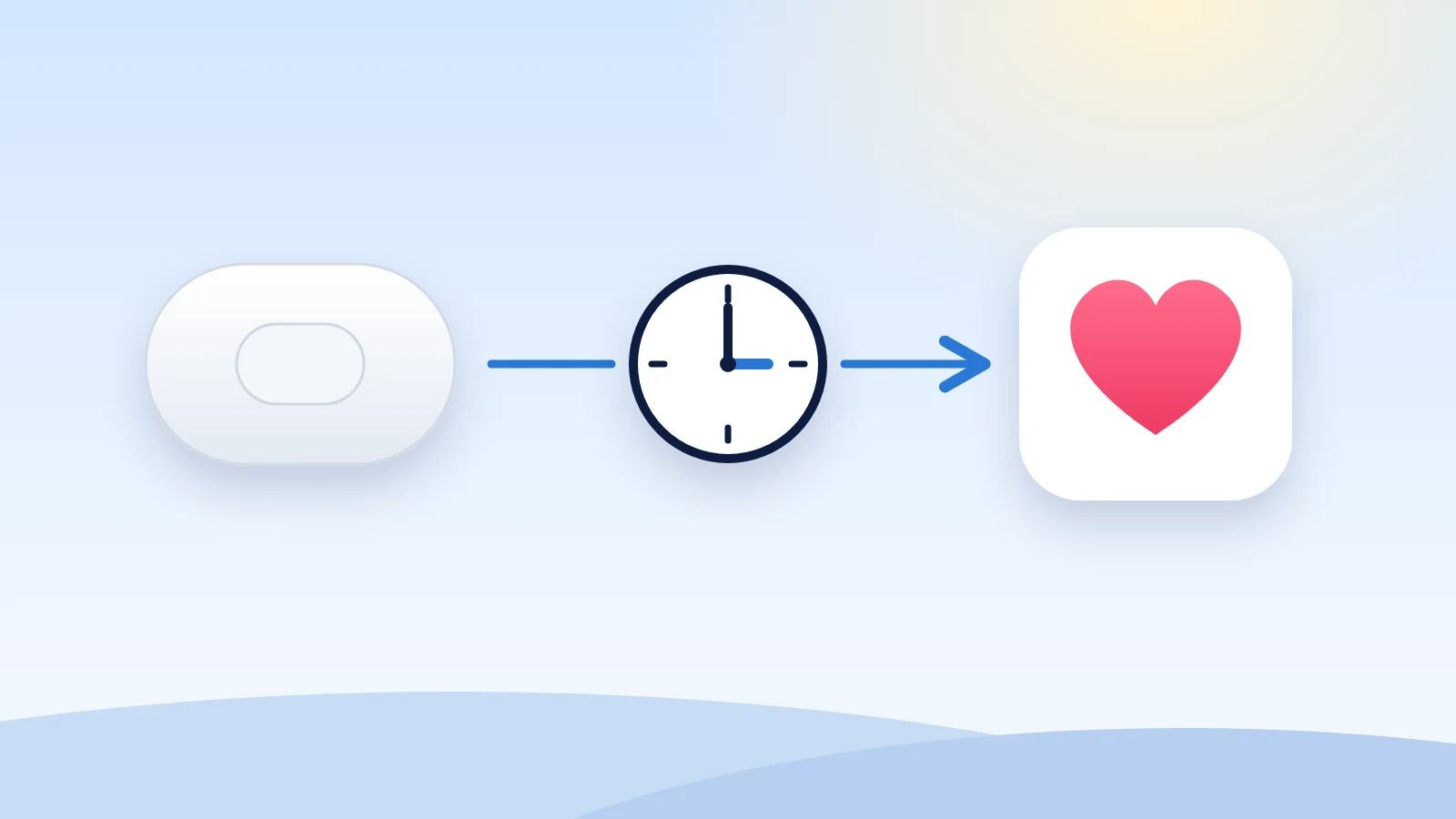
Turn it on in the Dexcom G7 app
These are the steps Dexcom gives for the G7 and the G7 15 Day:
- Open the Dexcom G7 app and tap the Connections tab.
- Tap Apple Health.
- Tap Activate.
- On the Health Access screen, turn on the Blood Glucose switch.
- Tap Allow.
Turn it on in the Dexcom G6 app
- Open the menu in the Dexcom G6 app.
- Tap Settings, then Health.
- Tap Enable.
- On the Health Access screen, turn on Blood Glucose.
- Tap Done.
According to Dexcom's manual for the G6, the app then sends the last 30 days of glucose to Apple Health, except for the most recent 3 hours. After that, each new reading follows 3 hours later.
The three-hour delay
Dexcom says that Apple Health receives your glucose after a three-hour delay, not in real time. That goes for the G7, the G6, the Dexcom ONE+ and the Stelo. Dexcom's help pages don't say why.
In practice this means that when you finish a workout, the glucose for that workout isn't in Apple Health yet. Any app that reads Apple Health sees it three hours later. Your Dexcom app itself still shows your glucose right away.
Check that it works
- Open the Health app, search for Blood Glucose and tap it.
- Scroll down and tap Data Sources & Access.
- Look for Dexcom under Data Sources. If it's listed, your readings are arriving.
The newest reading you see there will always be about three hours old.
Glucose on your Apple Watch is something else
Apple Health and the Apple Watch are easy to mix up here. The delay is about Apple Health. On the watch, the G7 can show your glucose in real time through a feature Dexcom calls Direct to Watch, which connects the sensor to the watch over Bluetooth, so it also works when your iPhone isn't nearby.
Dexcom lists what you need for it: an Apple Watch Series 6 or later with watchOS 10 or later, and an iPhone on iOS 17. You set it up in the G7 app under Connections, then Direct to Watch.
Using your Dexcom data in SugarLaps
SugarLaps reads your Dexcom glucose from Apple Health, so sharing has to be on in the Dexcom app first. SugarLaps also needs permission to read it: in the Health app, tap your profile, then Apps, then SugarLaps, and turn on Blood Glucose.
Because of the delay, SugarLaps waits before it tells you a session is ready. With Dexcom, the notification comes about seven and a half hours after you finish. By then the hours after your workout are in Apple Health as well.
If you'd rather not wait, you can open a Dexcom Clarity export in SugarLaps.
Still stuck?
Email hello@sugarlaps.com and tell us which Dexcom sensor and app you use.
Sources
- Dexcom. How do I share my G7 glucose data with the Apple Health app?
- Dexcom. How do I enable glucose data sharing from Dexcom G6 app to the Apple Health app?, and Dexcom's G6 manual, appendix C.5.
- Dexcom. Dexcom ONE+ and Apple Health, and Stelo by Dexcom, How do I share Stelo glucose data with Apple Health app?
- Dexcom. What are the device and operating system requirements for Direct to Watch?
Read on 20 November 2026. Dexcom's menus can differ by country and app version.
Dexcom, Dexcom G6, Dexcom G7, Dexcom ONE+, Stelo and Dexcom Clarity are trademarks of Dexcom. SugarLaps is not affiliated with Dexcom.